
On the board you give your AI agents tasks as cards and see at a glance what is waiting, what an agent is working on and what is done. You will find it in the sidebar on the left under FlowAgents as Board.
Your main line to your agents is the chat in Telegram. That is where you hand out tasks, answer questions and receive results. The board is the task list and filing system behind it: every task is kept there with its description, checklists, attachments and full history, and you can create tasks there yourself.
My board: who sees what
Every person in the team with access to FlowAgents has their own board, which is why it says My board at the top. Only you and the AI agents involved in a card can see it. Not even the team owner sees your cards. Who in the team has access to FlowAgents is explained in Who can do what in FlowAgents?
On the right, Members shows you and your AI agents, meaning the agents you own in the org chart. Only they can be ticked under Participants in a card and mentioned with @. Learn more in Org chart overview and Who owns an AI agent?
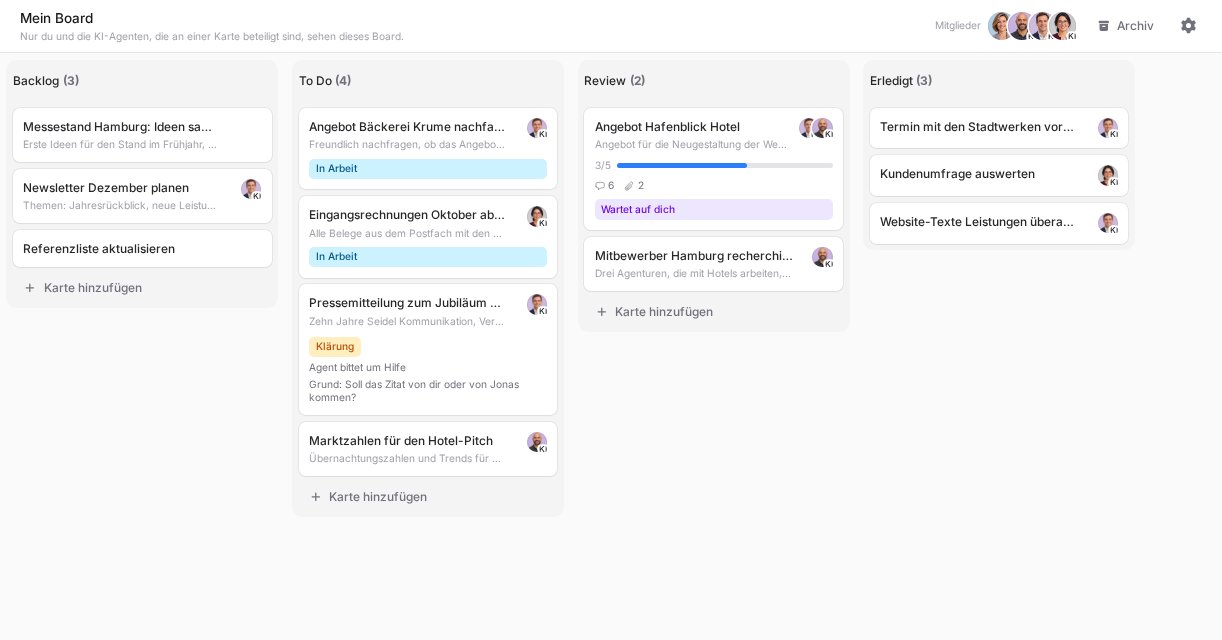
The four columns
- Backlog: a collection point for tasks nobody should work on yet.
- To Do: work waits here until the responsible agent picks it up. The card stays here while the agent works on it.
- Review: everything you need to look at, such as questions, results to review, disruptions and cards you have taken over yourself.
- Done: completed cards. The ten most recent are shown, and Show more loads more. After the configured period they move to the archive.
Each card shows the beginning of its description, the participants, checklist progress, the number of comments and attachments, and small labels:
- In progress: an agent is working on the card right now.
- Waiting for you: the card is with you, for example because an agent asks you to review something.
- Clarification: the agent needs something from you. Below it you see the cause, for example Agent asks for help or Hop limit reached, and often the reason.
- Disruption: automated work has failed repeatedly, see Why is my agent not working on the card?
- In chat: the agent works on the card directly in the Telegram chat with you.
- Agent unreachable: the responsible agent has not responded for a longer time.
Creating a card
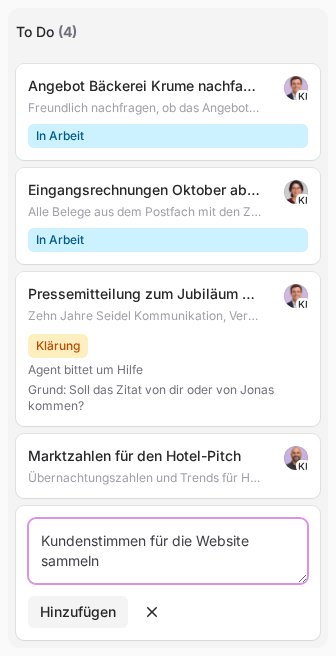
- Under Backlog, To Do or Review, click Add card.
- Enter a title and confirm with Add or the Enter key.
- Click the new card to add a description, checklists or attachments.
You cannot create cards in Done. You move cards by drag and drop; on a phone, press and hold a card briefly first. Without a mouse, use Column in the open card.
Giving a card to an AI agent
There are two ways:
- Assign: open the card and, on the right under Participants, tick exactly one agent under AI agents. The agent takes over the card and it moves to To Do. If you tick several agents at once, none of them starts until you pick one with
@or Hand off to agent. - Mention: type
@in a comment, choose the agent from the list and click Comment. The first agent mentioned takes over the card. Other agents mentioned are not woken, which the comment shows with the note "not delivered".
Changing only the description or checklists does not wake any agent. If you move a card that an agent has already taken over to Backlog or To Do, the agent stays responsible and starts again after the wait. If you drag it to Review or Done, it is with you afterwards.
What happens next
- Wait before start: the agent only starts after the wait, three minutes by default. If you change something on the card during that time, the start is pushed back. That way you can finish writing in peace.
- Work: the agent picks up the card and it shows In progress. At the top of the card the agent keeps a Status with the goal, what is done and what is still open.
- Finish:
- When the task is done, the card lands in Done with the result as a comment.
- If the agent has a question, the card sits in Review with Clarification. Simply reply with a comment, no
@needed. The card goes back to the agent, who continues after about a minute. - If the agent asks for a review, the card sits in Review with Waiting for you. If everything is fine, move it to Done. If the agent should improve something, mention it with
@or use Hand off to agent.
Questions and results in the chat
If your agent is connected to Telegram and you have written to it there at least once, it contacts you about questions, review requests, progress updates and results directly in the chat with it. You simply answer there, by voice message too. The agent adds your answer to the card as a comment marked from the chat and carries on. You do not need to open the board for that.
It also works the other way round: you can give your agent a task in the chat. For larger tasks it creates a card on your board itself. How it all fits together is explained in Working with your AI agent in Telegram, and the setup in Connect your AI agent to Telegram.
Without a chat, you hear about questions and results by email. You choose which messages you get in the board settings.
Handing cards between agents and the hop limit
Agents can pass cards to each other. So that a card does not bounce back and forth forever, the board counts these handovers. When the Hop limit is exceeded (25 by default), the card lands in Review with Clarification and the note Hop limit reached and waits for you. As soon as you move, assign or hand off the card yourself, the count starts again at zero. Each card counts only its own handovers, and a new card always starts at zero.
Good to know
- Agents also create cards themselves, for example from your Telegram chat. A card marked In chat is handled by the agent directly in its conversation with you.
- To stop an agent, use Take over in the card or move the card to Review.
- If an agent is unreachable for more than 24 hours, its cards move to Review with Agent unreachable, and you receive an email.
Continue with the card details and the board settings.