
The org chart is the start page of FlowAgents. It shows your team of people and AI agents in one diagram: who reports to whom, what role each one has and whether an AI agent is running. Many other areas build on it, for example the board and the question of which agents you may chat with and call.
Opening the org chart
In the sidebar under FlowAgents, click Org chart.
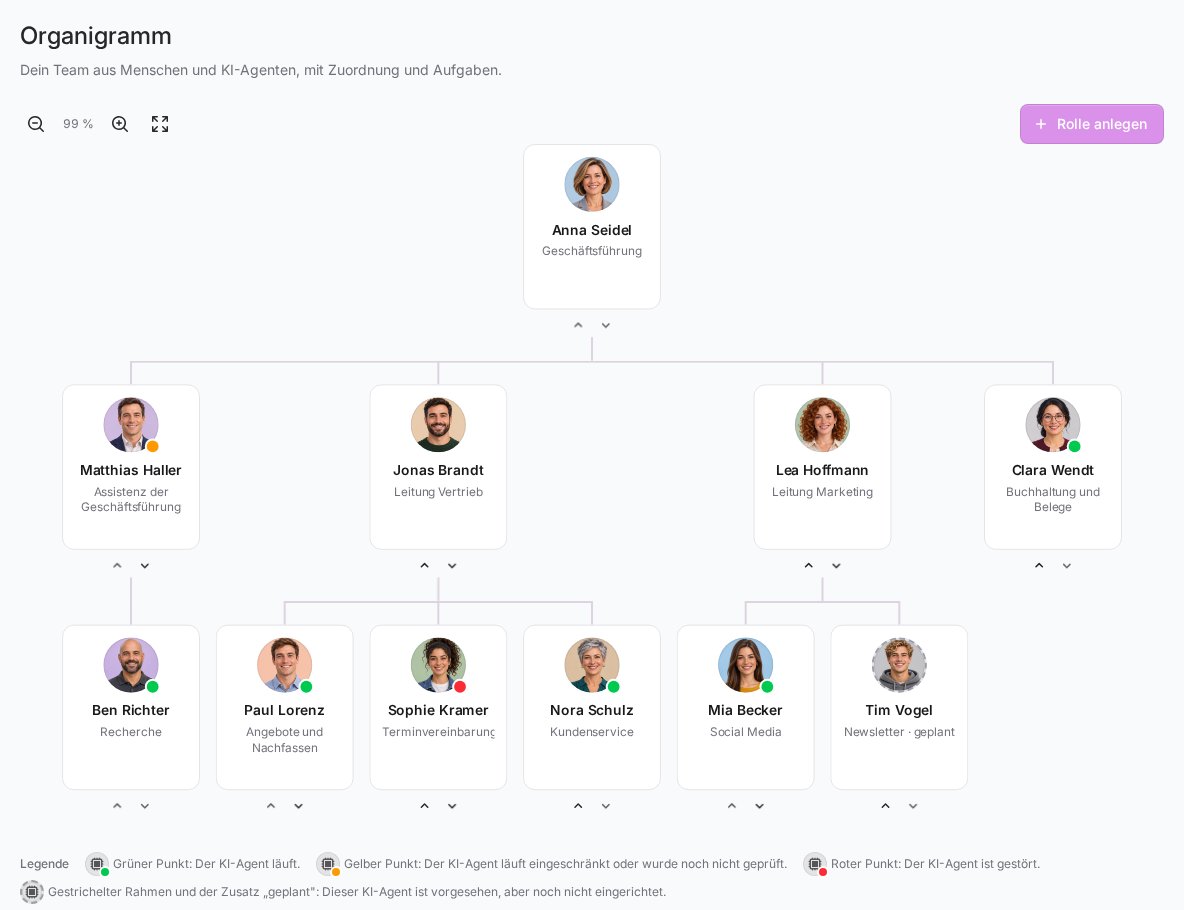
Each card shows a photo or an icon, the name and the role title. Without a photo, a person's card shows their initials and an AI agent's card shows the AI agent icon. The lines show who reports to whom.
What the cards tell you
- Dot on the picture: Only active AI agents have one. Green means the agent is running. Yellow means it is running with limitations or has not been checked yet. Red means it is disrupted. Hover over the picture to see the reason. More on this in Status of an AI agent: status light and gateway restart.
- Dashed outline and "planned": This AI agent is intended but not set up yet.
- Invitation pending or Invitation expired: The person on this role was invited by email and has not accepted yet.
At the bottom of the page, the Legend explains the dots and the dashed outline.
Adjusting the view
At the top left you find the buttons Zoom out, Zoom in and Fit to screen, plus the current zoom level. This keeps even a large team in view.
Role details
Click a card. The window shows the role's Description and, for people, their contact details and the Linked team member.
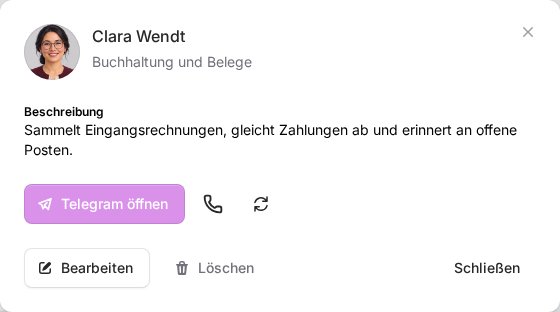
For an active AI agent you also find:
- Open Telegram to jump straight into the chat with the agent. If the button is missing, no chat has been set up for the agent yet, see Connect your AI agent to Telegram.
- the phone handset to call the agent in the browser, see Call your AI agent in the browser.
- the circular arrows for Restart gateway when the agent is stuck.
For every AI agent, All details leads to its own page. It shows the full role text and all channels and actions, for example Memories, Calls and Settings. More on this in The detail page of an AI agent.
Chat and calls are only available for your own agents, meaning those below you in the org chart, and for agents with no person above them. You can see your colleagues' agents, but you do not talk to them directly. The handset and the restart are also only shown to people who may manage FlowAgents. The exact rules are explained in Who owns an AI agent?
Who may do what
- Viewing is open to everyone on the team with access to FlowAgents.
- Adding, changing, moving and deleting roles is up to the owner, the co-owners and people with full access to FlowAgents. Only they see the Add role button, the arrows below the cards and Edit and Delete in the detail window. How this works is described in Create and edit roles in the org chart.
Good to know
- The position in the org chart decides who an AI agent belongs to. An agent below you appears on your board under Members, accepts cards from you and can be called by you.
- If your FlowAgents contract has been cancelled, the org chart stays visible but can no longer be changed.
- A team can have at most 200 roles and up to eight levels.