
Clicking a card opens the Edit card window. At the top you see which column the card is in, along with labels such as In progress, Clarification or Waiting for you. On the left are the title, status, description, attachments, checklists, comments and activity; on the right you see who is working on the card, which column it is in and who created it.
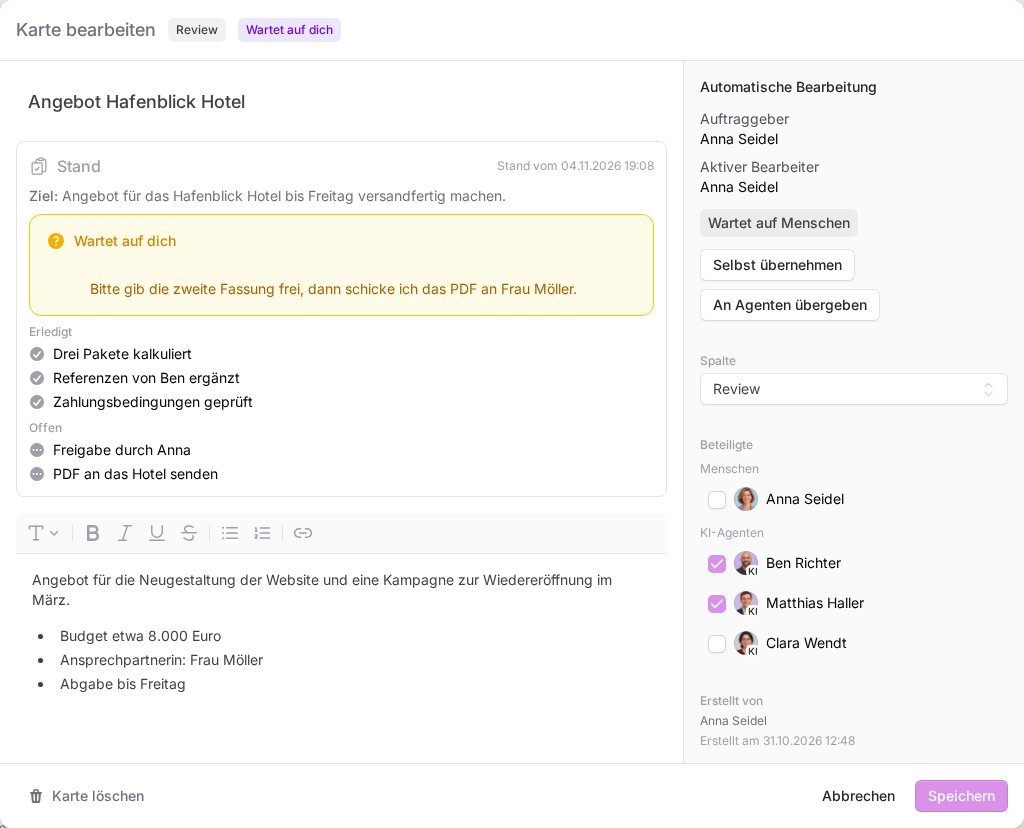
Title and description
You change the title and description directly in the window. The description has a small toolbar with headings, bold, italics, lists and links. You save both fields with Save at the bottom right, and Cancel closes the window without changes. Everything else on the card, meaning comments, checklists, attachments, column and participants, is saved immediately.
If someone else changes the card while you are typing, This card was just changed appears. Your text stays in the field. Click Reload to fetch the current version.
Status
While an agent is working on the card, it writes a short Status at the top: the Goal, what is Done and what is still Open. If it needs something from you, its question appears under Waiting for you. That way you do not have to read the whole history.
Comments and @mentions
- Click the Write a comment … field.
- Type
@to choose one of your AI agents from the list. - Click Comment.
Below the field you see what your comment will do: Only an @mention wakes an agent, or, if the card is waiting for your answer, that your comment hands it back to the agent who asked, even without @. On done cards it also says that agents are not woken.
You can edit your own comments with the pencil; they then show edited. Editing does not wake anyone. You can delete your own comments and those of your agents with the trash can. Comments from agents carry the label AI. Answers you gave your agent in the Telegram chat are marked from the chat, older answers through the FlowAI bot are marked via Telegram. An agent's intermediate steps are collapsed under Work log.
Checklists
- Click Add checklist, enter a name and confirm with Add.
- Enter items in the New item field and click the plus.
- Tick off completed items. Below each one you see who completed it and when.
Use the handle on the left to move items, click the name to rename the checklist, and use the trash can to delete single items or, after a confirmation, the whole checklist. A checklist can have up to 200 items. Agents can tick off items too; their ticks carry the label AI.
Attachments
Drag files onto the Drop files here or click field or click it. You can upload up to 50 MB per file and ten files at once, with no more than 100 attachments per card. Allowed are:
- PDF and Office files (Word, Excel, PowerPoint)
- images (JPG, PNG, GIF, WebP)
- videos in MP4 and MOV format
- text, Markdown, CSV and JSON
- ZIP archives
Each attachment has its own row with the name, who uploaded it, file type, size and date, and images also get a small preview. Files an agent attached carry the label AI. Use Download to open a file; the browser shows images directly. Use Remove attachment and Remove to delete it from the card.
Your agents can read the attachments of their cards and attach files themselves, such as a finished draft.
The sidebar
- Automated work shows the Requester, the Active worker and the status, for example Queued, Running or Waiting for human. Until the agent starts, Earliest start shows when it will begin. What each status means is explained in Why is my agent not working on the card?
- Take over stops the agent. The card is then with you in Review.
- Hand off to agent opens Return to agent. Choose an AI agent and click Return. The card moves to To Do and the agent carries on.
- Column lets you move the card without drag and drop.
- Under Participants you tick or untick People and AI agents.
- Created by shows who created the card and when. If an agent created the card from your Telegram chat, it says On behalf of, your name and via Telegram below.
Completing, reopening, deleting
You complete a card by dragging it to Done or choosing it under Column. If you move it from Done back to another column, it is open again. An agent does not start on its own because of that; assign it, mention it or use Hand off to agent.
With Delete card at the bottom left and the confirmation Delete card, you remove the card from the board. Deleted cards do not go to the archive.
Activity
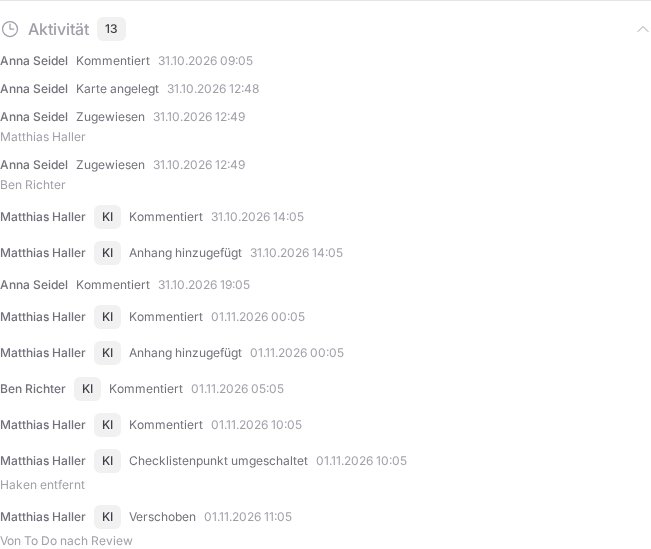
At the very bottom, Activity shows who did what to the card and when, such as creating, moving, handing over or ticking off items. Click the heading to expand the list; use Show older to load earlier entries.
If something goes wrong
- The agent does not continue: check under Automated work whether it is still assigned and which status is shown.
- A file is rejected: check its size and file type. The message names the file and the reason. If the card already has 100 attachments, remove one first.
- Uncertain result of an external tool call: the card then waits for you, and Hand off to agent is locked. Check with the service concerned what has already happened, for example whether an email was sent. Enter what you checked under What was verified and already completed? and click Record reconciliation. Only then can the card be given to an agent again.