
In the board settings you decide how quickly your AI agents get going, how often they may pass a card between each other and when done cards move to the archive. You also decide there how you are notified.
Opening the board settings
Open your Board. At the top right, next to Archive, you will find a gear icon with the tooltip Board settings. Click it to open the window.
Since every person has their own board, only you can change the settings of your board. Team owners and colleagues have no access to them, and you have none to theirs.
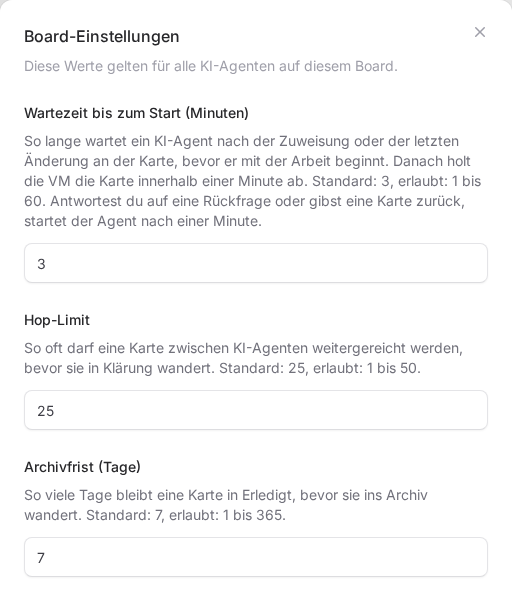
The three values
The values apply to all AI agents on your board.
| Setting | Default | Allowed |
|---|---|---|
| Wait before start (minutes) | 3 | 1 to 60 |
| Hop limit | 25 | 1 to 50 |
| Archive after (days) | 7 | 1 to 365 |
- Wait before start: how long an agent waits after the assignment or your last change to the card before it starts. It then picks up the card within a minute. If you answer a question or hand a waiting card back to it, it starts after about a minute.
- Hop limit: how many times a card may be passed between AI agents. After that it lands in Review with Clarification and the note Hop limit reached and waits for you.
- Archive after: how many days a card stays in Done before it moves to the archive.
Change the values and click Save. A new board takes over the values from the team owner's board; otherwise the defaults apply.
My notifications
In the lower part of the window you set how you hear about your board. These switches apply only to you and are saved immediately; you then see Notifications saved. At the start they are all switched on.
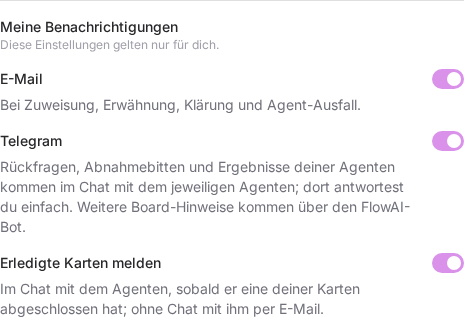
- Email: you get a message on assignment, mention, clarification and when an agent goes down. Open card takes you straight to the card. If you belong to several teams, switch to the team the card belongs to first.
- Telegram: questions, review requests and results from your agents arrive in the chat with the respective agent, and you simply answer there. Other board notices are sent to you by the FlowAI bot. If you switch Telegram off, your agent no longer contacts you about cards in the chat.
- Report finished cards: as soon as an agent has completed one of your cards, you get the result. It arrives in the Telegram chat with the agent if you are connected to it, otherwise by email.
You can only change Telegram if your account is linked with Telegram. Otherwise it says Your account is not linked with Telegram yet. with the Connect Telegram button next to it. How linking works is explained in Connect FlowAI to Telegram (in German). For your agents to write to you themselves, they also need their own bot, see Connect your AI agent to Telegram. How working in the chat goes is explained in Working with your AI agent in Telegram.
If several things happen on a card in quick succession, the board combines emails and FlowAI bot notices within five minutes into one message. If you complete a card yourself, you do not get a message about it.
The archive
Done cards move to the archive automatically once the archive period has passed; this happens once a night. You open it at the top right of the board via Archive or directly at Board archive.
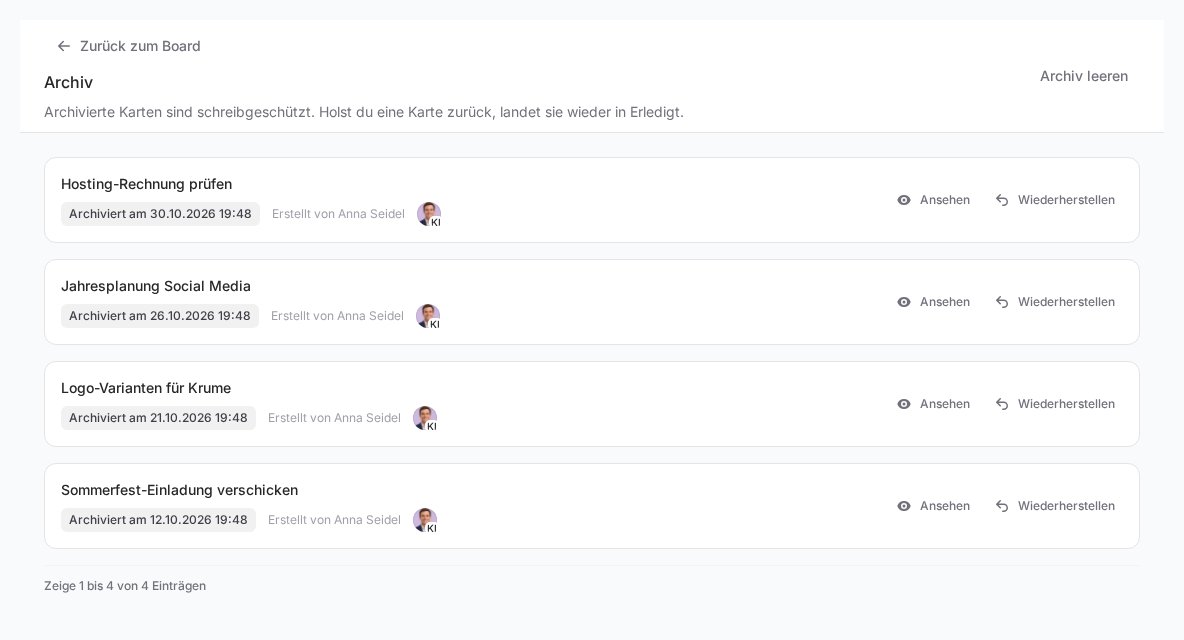
Each card shows Archived on with the date, Created by and the participants. Archived cards are read-only, and your agents no longer see them. If there are many cards, page through them at the bottom.
- View opens the card with its description, checklists, comments, attachments and activity. You can get attachments there via Download.
- Restore puts the card back in Done. The archive period then starts over. If you want to keep working on it, drag it into an open column afterwards.
- Back to the board takes you back to your cards.
Clearing the archive
- Click Clear archive at the top right. The button only appears when there are cards in the archive.
- The window states how many cards will be deleted. Type CLEAR into the field to confirm.
- Click Clear archive now.
This deletes all archived cards of your board, including comments and attachments. It cannot be undone. If you still need individual cards, bring them back with Restore first.
If something goes wrong
- A value is not saved: check that it is within the allowed range. Otherwise an error message appears.
- The Telegram switch is greyed out: link your account first via Connect Telegram.
- Questions arrive by email instead of in the chat: check that Telegram is on, that your agent has its own bot and that you have written to it yourself at least once.
- The archive is empty: cards only appear there once they have been in Done for longer than the archive period.