
If your AI agent is already running but has no Telegram bot yet, you can connect it yourself. All you need is the bot token and a few minutes. After that you write to the agent directly in Telegram.
Before you start
- You have created a bot of its own for the agent and have the token at hand, see Create a Telegram bot with BotFather and copy the token.
- The person the agent belongs to in the org chart has Telegram on their phone. Only this person can write to the agent later.
- You are allowed to connect the agent: it is your own agent, or you may edit FlowAgents for the whole team and can therefore also connect your team members' agents. More on this in Who can do what in FlowAgents?
Step 1: Open the dialog
- In the sidebar, under FlowAgents, open AI agents.
- For an agent without a bot, the Telegram icon in the Actions column is orange. When you hover over it, Connect Telegram appears. Click it.
- The window Connect Telegram for … opens with the three steps Check bot, Allow person and Done.

If we sent you a link that looks like this: https://flowagents.one/dashboard/agenten?telegram=…, the window opens straight after you sign in. If the agent does not belong to you or already has a bot, the window stays closed.
Step 2: Check the bot
- Paste the token into the Bot token field.
- If you like, also enter the Bot username, without the leading @. We then match it against the token.
- Click Check bot.
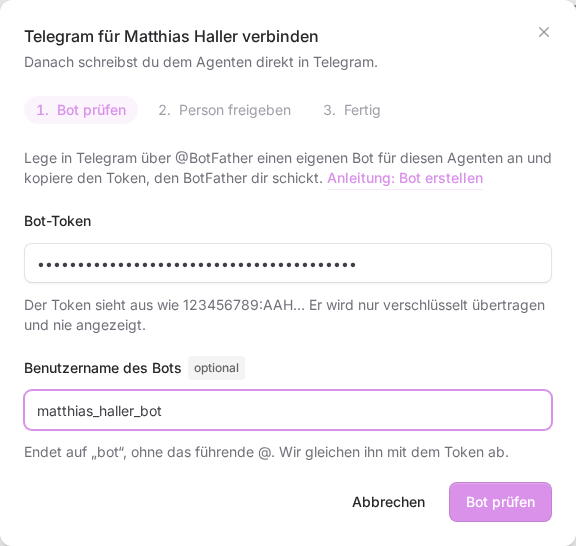
We ask Telegram whether the token is valid and whether the bot is still free. The token is sent encrypted and never shown again afterwards. If everything is fine, the top of the window says Bot @… is checked. With Use another bot you go back and enter a different token.
If you close the window by accident, you do not have to check the bot again right away: if you reopen it within 30 minutes, you continue at the Allow person step.
Step 3: Allow the person
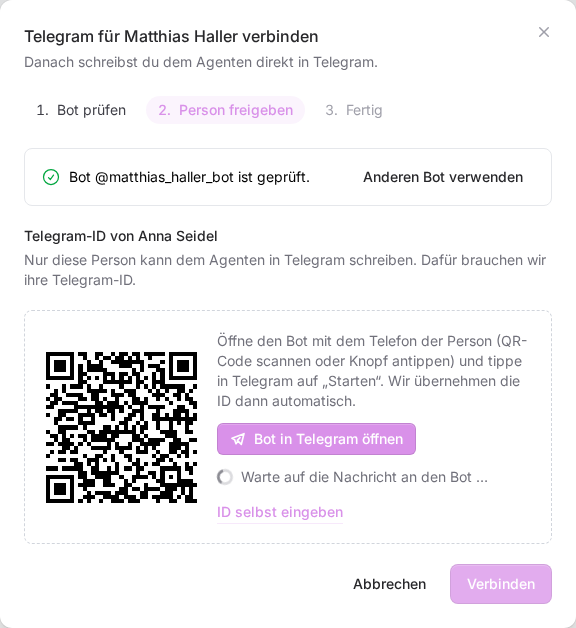
Only an allowed person can write to the agent, namely the person the agent belongs to in the org chart. The dialog names them in the heading Telegram ID of …. For that we need their Telegram ID.
- If the ID is already known, the window shows This Telegram ID is already on file. with the last digits for checking. In that case only our support can enter a different ID.
- If it is missing, the window shows a QR code and the button Open the bot in Telegram. The person scans the code with their phone or taps the button and then taps Start in Telegram. After a few seconds the window shows Found: with their first name.
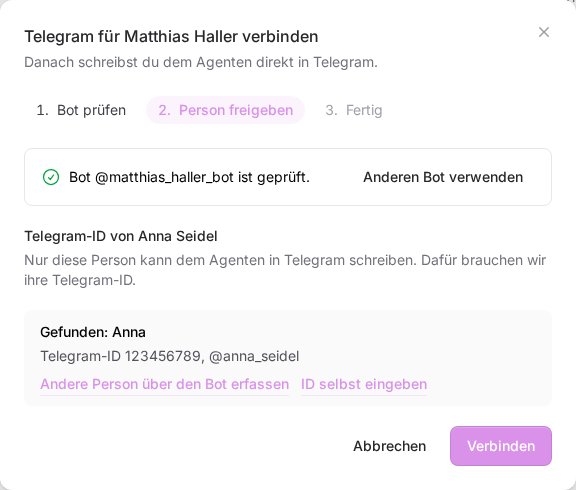
- Prefer to do it by hand? With Enter the ID yourself you enter the Telegram ID and, if available, the Telegram username, see Find your Telegram ID. Capture through the bot after all takes you back to the QR code.
Step 4: Connect
Click Connect. The window then shows Telegram is being connected: the bot is set up on the agent's server, which usually takes one to two minutes. After that the agent answers in Telegram, and in the list the orange icon becomes a normal Telegram icon with the hint Open Telegram. To test it, just send the agent "Hello".
If something goes wrong
- "This is not a valid bot token. Copy it completely from BotFather’s message.": part of the token is missing. Copy it again with every character before and after the colon.
- "Telegram does not know this token. Check it or create a new one with /token in BotFather.": the token is wrong or was renewed in BotFather. Copy the current token again.
- "The token belongs to the bot @…, not to the name you entered.": the username does not match the token. Leave the field empty or correct the name.
- "This bot is already used by another program. Create a bot of its own for the agent.": the bot is already running somewhere else. Create a new bot for the agent.
- "Too many attempts. Please wait a little and try again.": you can run ten checks per hour. Wait a little and then try again.
- "The bot check has expired. Please enter the token again.": more than 30 minutes have passed since the check. Click Use another bot and enter the token again.
- No message arrives: the person really has to tap Start in Telegram. After five minutes the window stops waiting and shows No message has arrived yet. Click Wait again to continue.
- "A different Telegram ID is already on file for this person. Only our support can enter another one.": get in touch with us and tell us which agent it is.
- The icon shows "Open Telegram" instead of "Connect Telegram": the agent already has a bot, and a click opens the chat. If you need a different bot, we set it up for you, so please get in touch.
- "Telegram cannot be connected here for this agent. It already has a bot or is being set up." or no Telegram icon next to the agent: the agent is still being set up, it is not active yet, or it belongs to another person in the team. Get in touch with us if that does not seem right.
- The agent does not answer after connecting: read Your AI agent does not reply in Telegram.