
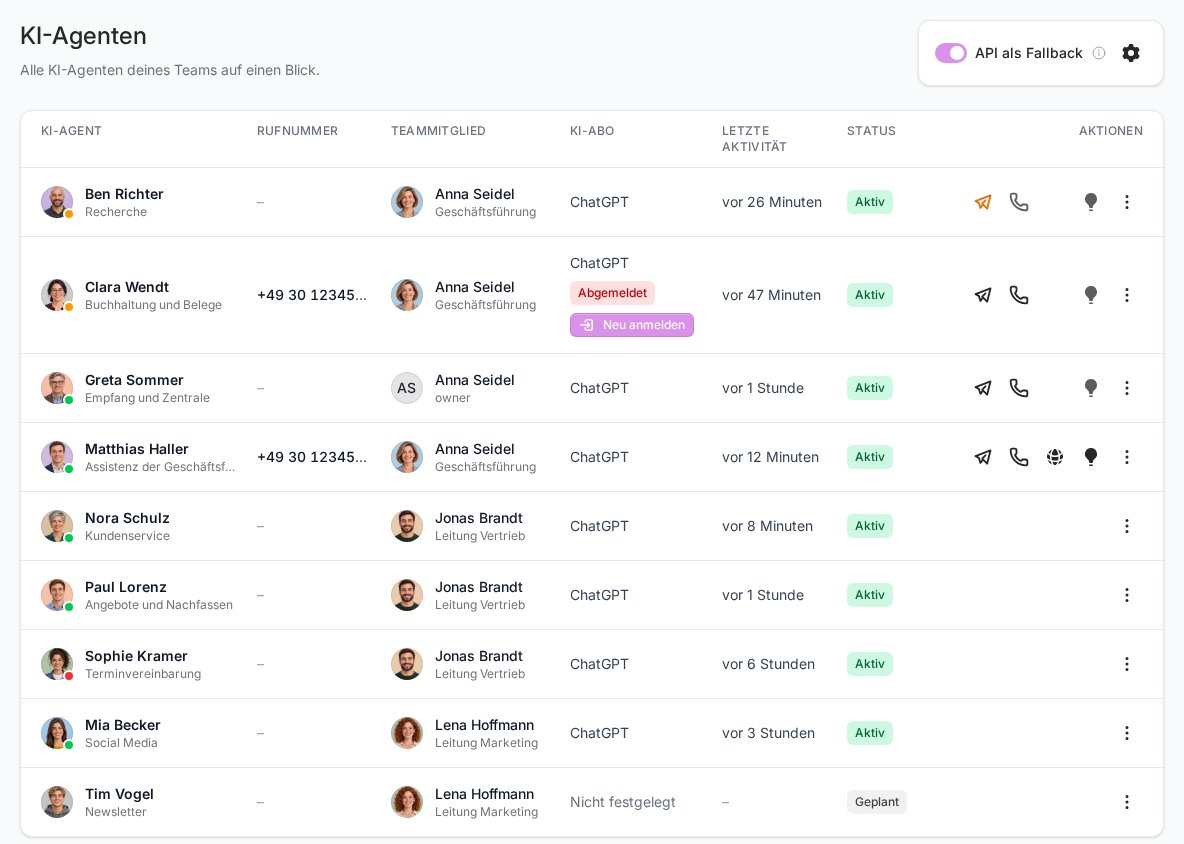
Under AI agents in the sidebar you'll find all the AI agents that belong to you, with their phone number, AI subscription, last activity and status. From here you can message an agent on Telegram, call it, or open its browser, its memory or its own page. This article explains what the columns and icons mean.
Which agents you see
Your own agents always come first, meaning the ones placed below you in the org chart. Active agents come before planned ones, and within each group they're sorted by name.
If you're the owner or a co-owner, or you have full access to FlowAgents, your team members' agents follow below, sorted by team member. You can manage them, for example log their AI subscription in again. You can't talk to them, though: Telegram, calls, the browser and the memory stay with the person the agent belongs to. How this assignment works is explained in Who owns an AI agent?
Members without these rights only see their own agents.
The columns
| Column | What it shows |
|---|---|
| AI agent | Picture, name and role. The coloured dot on the picture is the status light. Clicking the picture or name opens the agent's own page. |
| Phone number | The number the agent answers calls on. Without a number you'll see a dash. |
| Team member | The person above the agent in the org chart, with role and photo. |
| AI subscription | The subscription the agent works with, such as ChatGPT or Grok. Without one it says Not set. |
| Last activity | When the agent last did something. Hover over it to see the date and time. |
| Status | Active or Planned. During a call, On a call is added. |
| Actions | The icons for Telegram, calls, the browser, memories and the menu. |
Last activity is the most recent of two things: a chat message, for example on Telegram, or an answered call. Tasks the agent works on in the board don't count here.
If the AI subscription login has expired, the AI subscription column shows a red Logged out. For active agents, anyone who can manage FlowAgents also sees a Log in again button next to it that takes them straight to the login, see Connect an AI subscription to an AI agent.
An agent's own page
Clicking an agent's picture or name opens its detail page. There you'll find its profile with the full role text, plus every channel and action you're allowed to use for this agent. Anyone who can manage FlowAgents can also edit the name, role title, reporting line and role text there. More in Configure an AI agent: detail page and profile.
The icons under Actions
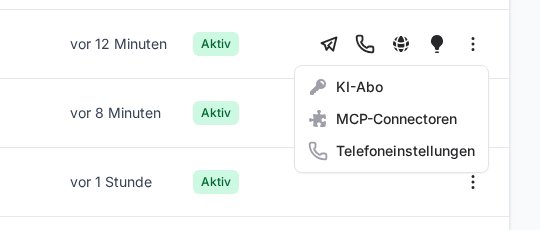
- Telegram icon: with the tooltip Open Telegram and the bot's name, it opens the chat with the agent. If it's orange and says Connect Telegram, the agent doesn't have a bot yet. It then opens the dialog described in Connect your AI agent to Telegram.
- Phone (Call): starts a call in the browser. The icon only appears if telephony is enabled for your team. If the phone is greyed out, hover over it to see why, for example "Only active agents can be called." More in Call your AI agent in the browser.
- Globe (Open browser): shows the agent's browser, see Open your AI agent's browser. The icon only appears if we've set up a browser for the agent.
- Light bulb (Memories): opens the agent's memory, see Your AI agent's memory.
- Three dots (Manage): opens a menu with AI subscription and MCP connectors. If telephony is enabled for your team, Phone settings is there too. Connectors are explained in Set up MCP connectors.
You only see the browser, memories and the menu if you can manage FlowAgents. The browser and memories are also only available for your own agents.
API as fallback
Anyone who can manage FlowAgents sees the API as fallback switch at the top right of the page. It applies to all of the team's agents: if an agent's AI subscription fails, it keeps working through FlowModels. Use the gear icon next to it (Choose model) to pick the model. The details are in Multiple accounts, main account and API as fallback.
If something goes wrong
- "No AI agent has been created for your team yet.": We set up the agents for you, see Request AI agents and get started. Get in touch if you already have a contract and still don't see anything.
- An agent is missing from your list: It's probably placed below someone else in the org chart. Then it only shows up for that person and for those who manage FlowAgents.
- Telegram or the phone is missing for an agent: It belongs to another team member, so only that person can talk to it. If the phone is missing for every agent, telephony isn't enabled for your team yet.
- The light bulb is greyed out: No memory is connected to the agent yet, or its server isn't fully set up. Hover over it to see the reason.