
MCP connectors give an AI agent access to more tools, for example GitHub or one of your company's own systems. MCP is an open standard that AI programs use to talk to other services. All you enter is the address of the MCP server and, if needed, a token.
Before you start
- You may manage FlowAgents, which means you are the owner, a co-owner or have full access to FlowAgents. You can then set up connectors for every agent of your team, including agents of other team members.
- The service provides an MCP server at a public HTTPS address. Addresses without HTTPS or inside an internal network are not possible.
- If the service requires a login, you need a token it accepts as a bearer token. Where to get it is described in that service's documentation.
Adding a connector
- In the sidebar, open AI agents under FlowAgents.
- In the agent's row, click the three dots (Manage) and choose MCP connectors. The window MCP connectors of followed by the agent's name opens.
- Click Add connector.
- Enter a Name. Lower-case letters, digits and hyphens are allowed, at most 40 characters, for example
crmorgithub. The agent sees the tools under this name. - Enter the HTTPS address of the MCP server under Address.
- Enter the Token (optional) if needed.
- Leave Active switched on and click Save.
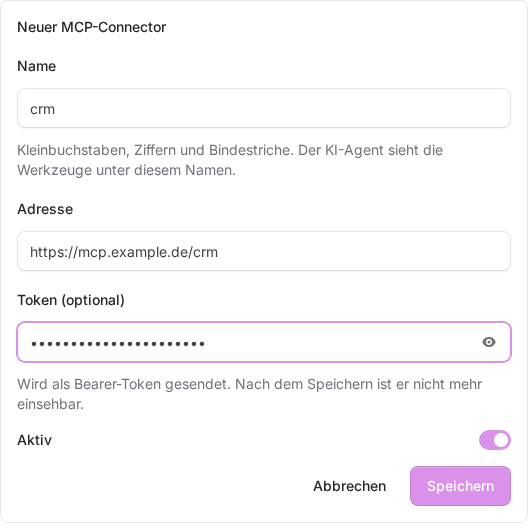
FlowAgents reports “MCP connector saved. The AI agent is being set up again.” Until the change has reached the agent, the connector shows Being applied. After that the agent can use the tools.
The connector list
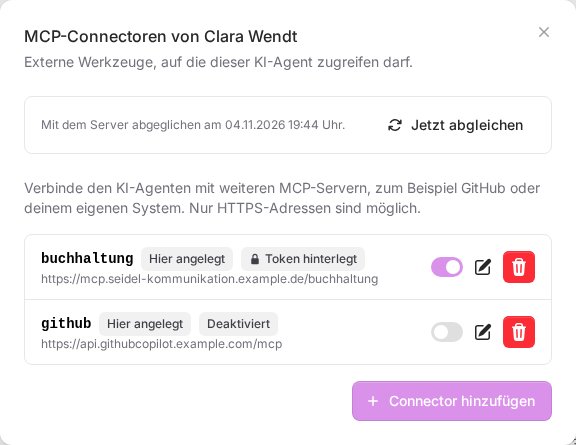
Each connector shows its name and address plus small labels:
- Added here: You set up the connector on this page.
- On the server: The connector was set up directly on the agent's server, for example by us. You can switch it on and off or remove it, but not edit it here. Some of these connectors show Local command with the program running on the server instead of an address.
- Token stored: A token is saved. It cannot be viewed after saving.
- Disabled: The connector is switched off. The agent does not use it.
- Being applied or Being removed: The change is on its way to the agent.
- Transfer failed: The change did not reach the agent. The reason is shown below. Save the connector again or get in touch with us.
Changing, switching off or removing a connector
- Switch on and off: With the switch in the row.
- Edit: With the pencil. If you leave the token field empty, the stored token is kept. Remove stored token deletes it.
- Remove: With the bin. After you confirm, the agent immediately loses access to this connector's tools.
Good to know
- An AI agent can have at most 20 connectors.
- Each name can be used only once per agent.
- Sync now at the top of the window fetches the current state from the agent's server, for example connectors that were set up there. Next to it you see when the last sync took place.
- On an agent's page (click its name in the list), Settings under Channels and actions takes you back to the agent list with this agent's AI subscription window open. You then open the MCP connectors through the three dots as described above. More about an agent's page in An AI agent's page.
- Only give an agent access to systems it needs for its tasks. What it may read or change through a connector is determined by the token you store. What the agent may do with that access and when it asks you first is explained in Approvals: when your AI agent asks first.
If something goes wrong
- “Please enter a public HTTPS address.” The address does not start with
https://or points to an internal network. - “Only lower-case letters, digits and hyphens, at most 40 characters.” Adjust the name.
- “The token must not contain spaces, quotes, $ or .” Copy the token again without spaces at the beginning or end.
- “Another connector of this AI agent already uses this name.” Choose a different name.
- “An AI agent can have at most 20 connectors.” First remove a connector the agent no longer needs.
- The three dots are missing in the row: You are not allowed to manage FlowAgents. Ask the owner or a co-owner to set up the connector.