
An AI agent can work with several accounts. If the first one is exhausted or logged out, it moves on to the next one by itself. If none of the subscriptions is enough, FlowModels can step in if you want. Here's how to set the order and switch on the API fallback.
The Accounts in use list
In the sidebar, open AI agents, click the three dots for the agent (Manage) and choose AI subscription. Under Accounts in use you'll see all accounts in the order the agent uses them:
- Main account: the agent works with this one first.
- Fallback 1, Fallback 2 and so on: these accounts take over when the previous one can't continue.
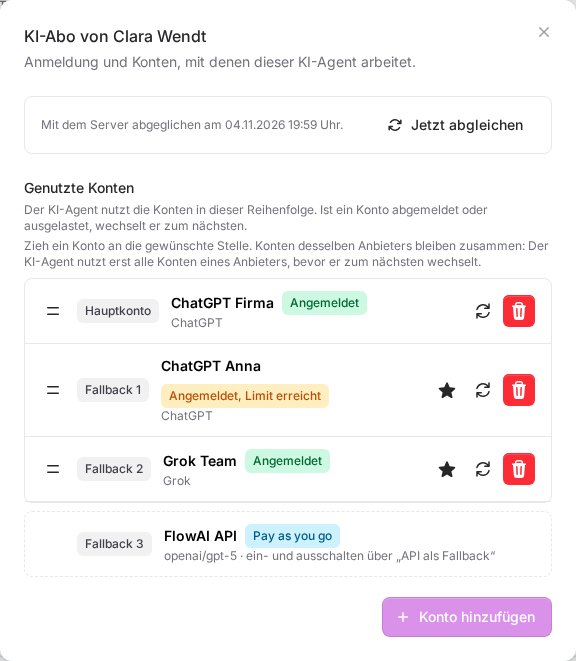
Each account shows its state:
- Logged in: all good.
- Logged in, limit reached or Logged in, quota used up: the account is exhausted for now. The agent uses the next one in the meantime.
- Logged out or Not logged in: log the account in again with the Log in button next to it.
- Not usable: a login of the server that this agent can't use. Log the agent in separately with Log in.
If needed, you can log a logged-in account in again with the circular arrows (Log in again). To add another account, use Add account, see Connect an AI subscription to an AI agent. An additional account of the same subscription is automatically added as the next fallback.
Changing the order
- Move: grab an account by the two lines on the left and drag it to where you want it. Accounts of the same provider stay together: the agent uses all accounts of one provider before it moves on to the next.
- Use as main account: click the star next to the account you want and confirm. The agent then works with this account first. Only a logged-in AI subscription can become the main account.
- Remove: the trash icon removes an account from the server after a confirmation. The agent can no longer use it afterwards.
If an account is marked as shared login of the server, other agents use it too. The trash icon is then called Stop using for this AI agent: the login stays on the server, only this agent stops using that provider.
After each change you'll briefly see "The changes are being applied to the AI agent." This usually only takes a moment.
Switching to a different subscription
If you log in an account from a different provider, such as Grok for a ChatGPT agent, it's only logged in at first. Below the list you'll then see "A Grok account is also logged in on the server." Click Use as main subscription to switch the agent to that subscription. It then uses that subscription's default model. If you took a provider out for this agent, Use as fallback brings it back into the order.
API as fallback
At the top right of the AI agents page you'll find the API as fallback switch. It applies to all AI agents of your team.
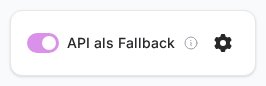
- Switch on API as fallback.
- In the window, choose under Model which model the agents should use in an emergency.
- Click Turn on.
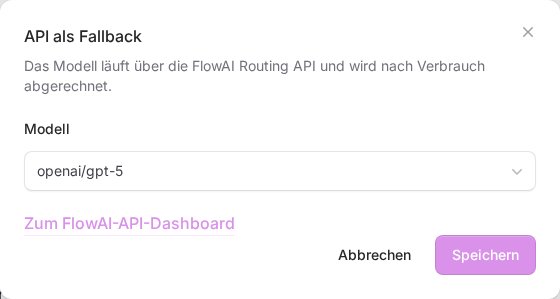
From now on, every account list ends with FlowModels marked Pay as you go. If all of an agent's subscriptions fail, it keeps working through it instead of stopping. You can change the model later with the gear icon next to the switch (Choose model).
Important: These requests are billed by usage through FlowModels. You can see the usage in the FlowModels dashboard; the Go to the FlowModels dashboard link is in the window. How to analyse it is explained in Analyze and export usage, and how to add credit in Top up credit.
While an agent is working through FlowModels, its AI subscription shows the note The AI agent is working through FlowModels, the FlowModels entry is marked In use right now, and the status dot turns yellow. Usually a login has expired. Log the account in again and the agent works through its subscription again. What else the status dot can mean is explained in AI agent status: understand the light and restart the gateway.
Good to know
- Only the owner, co-owners and members with full access to FlowAgents can change accounts, the order and the switch.
- While an agent is being updated, the order can't be changed for a short time. Try again after a minute.
- If FlowAgents says "The fallback order of this AI agent is set by the administration.", we've fixed the order for this agent. Get in touch if you want to change it.