
Every AI agent has a memory of its own. It keeps what it has learned about your company, your customers and your preferences in conversations and while working, and uses it for every task that follows. You can check what is in there at any time and search it.
Opening the memory
The memory belongs to the individual AI agent. There are two ways to get there.
From the agent list:
- In the sidebar under FlowAgents, open AI agents.
- In the agent's row, click the light bulb (Memories).
From the agent's page:
- In the AI agents list, click the agent's name. Alternatively, click its card in the Org chart and then All details.
- On the right under Channels and actions, click Memories.
For more about the agent's page, see The detail page of an AI agent.
The page Memory of followed by the agent's name opens. The data lives on the agent's server and is read straight from there when you open the page, so it can take a moment. To see the latest state later, click Refresh at the top right. Back to AI agents takes you back to the list.
Only the people an agent belongs to in the org chart can see its memory, and only if they may manage FlowAgents. For agents of your colleagues there is neither a light bulb nor a Memories button. Who an agent belongs to is explained in Who owns an AI agent?
Overview
The first tab, Overview, sums up the memory.
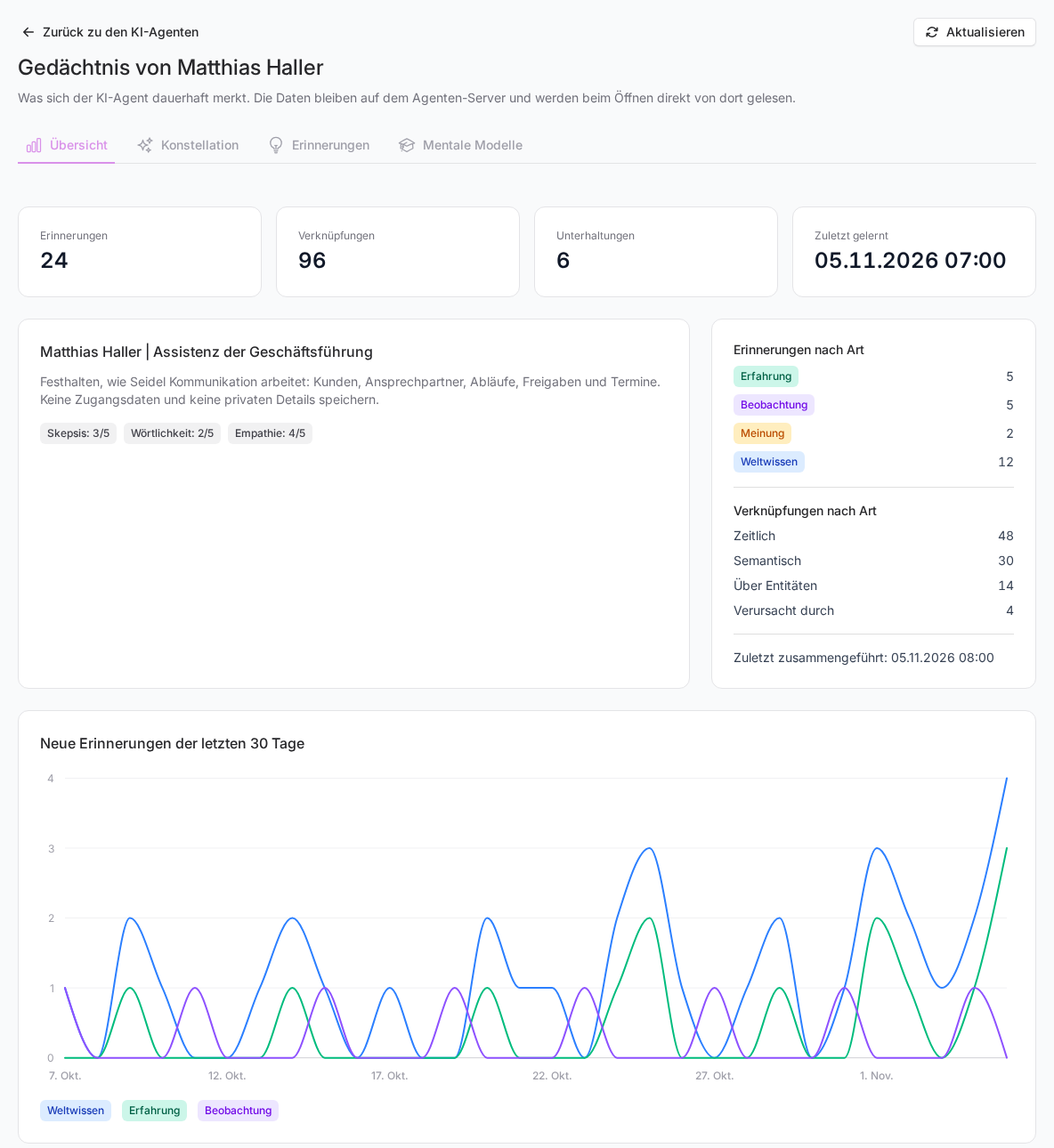
- Memories, Links and Conversations: how much the agent has stored and how many conversations it comes from.
- Last learned: when something was last added.
- The large card below the numbers carries the name of the memory (without a name it is called Mission of this memory) and describes what the agent pays attention to when remembering things. Below it are three values from 1 to 5 for Skepticism, Literalism and Empathy: how critically, how literally and how empathetically it interprets what it is told.
- Memories by kind and Links by kind: what the memory is made of. Below that you may see when the memory was last consolidated and whether operations are still pending.
- New memories in the last 30 days: how fast the memory grows.
- Directives: fixed rules the memory follows.
The four kinds of memories
| Kind | Meaning | Example |
|---|---|---|
| World knowledge | Facts about your company and its surroundings | "Krume Bakery has been a customer since 2021." |
| Experience | Something the agent did or went through itself | "I sent the quote to the Hafenblick Hotel." |
| Observation | Something the agent concludes from several memories | "Anna usually approves quotes on Fridays." |
| Opinion | An assessment with some uncertainty | "Ms Miller cares more about speed than price." |
Searching memories
The Memories tab lists every entry with its kind, entities and the date under Mentioned. At the top you see how many memories match your selection.
- Enter a keyword under Search memories, for example a customer name.
- Narrow it down further with Kind, Status and Tag if needed, or pick a period in the date field.
- Click a memory. Its details open on the right.
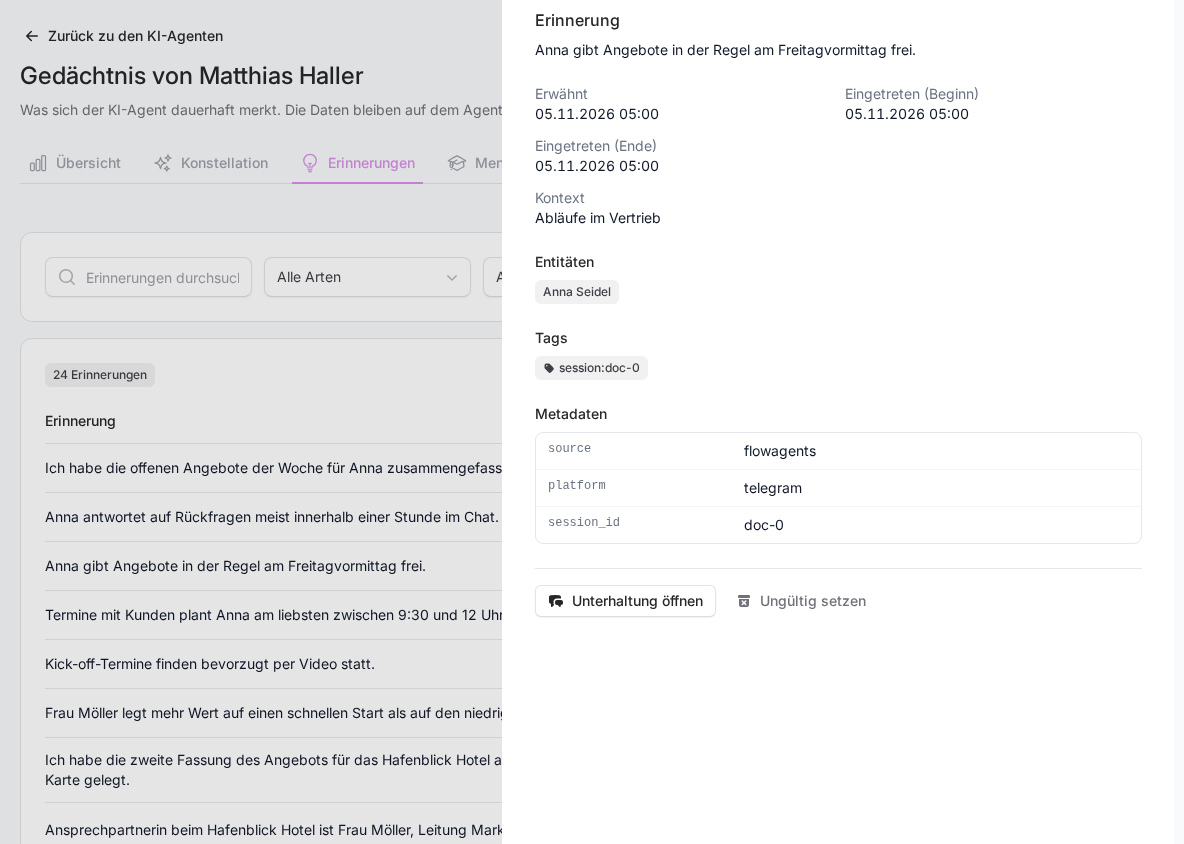
The details show when the matter was mentioned and when it happened, the Context, the Entities involved (people, companies, places or things), the Tags and, for derived memories, the Source memories, which you can open with a click. Open conversation takes you to the conversation the memory comes from. Reset filters brings back the full list.
Constellation
The Constellation tab shows the memory as a graph. Each dot is a memory, and lines connect memories that belong together. Under View you switch between Memories and Entities. Use Kind, Search memories and At most to limit what the graph shows.

Scroll to zoom and drag to move the view. Clicking a memory opens its details, clicking an entity shows all memories about it. Fullscreen uses the whole screen. For very large memories the graph shows only the strongest links and tells you so.
To give the agent fixed questions it always keeps up to date, see Mental models. If it remembered something wrong, see Correct wrong or confidential memories.
If something goes wrong
- "No memory connected": The memory has not been set up for this agent yet. We connect it as soon as it is active on the agent's server. Get in touch with us if this stays the case for long.
- The light bulb is greyed out: Hover over it. Usually the agent is not assigned to a server yet, the server is not fully set up, or no memory is connected yet.
- No light bulb and no Memories button: The agent belongs to another team member, or you are not allowed to manage FlowAgents.
- "The agent server cannot be reached right now" or "is busy right now": Try again in a few minutes.
- "The memory took too long to answer" or "The answer is too large": Narrow the selection with the search, the kind or a period.