
Many AI agents have a browser of their own. They use it to research, open your web tools and fill in forms. You can watch this browser at any time and work in it yourself, for example to log in to a tool once so the agent can carry on there afterwards. You and the agent work in the same browser.
Opening the browser
- In the sidebar, open AI agents under FlowAgents.
- In the agent's row, click the globe (Open browser).
- The window Browser of followed by the agent's name opens.
- Click Copy password at the top. The button briefly shows Copied.
- Paste the password into the password prompt in the browser window and confirm. You then see the screen of the agent's browser.
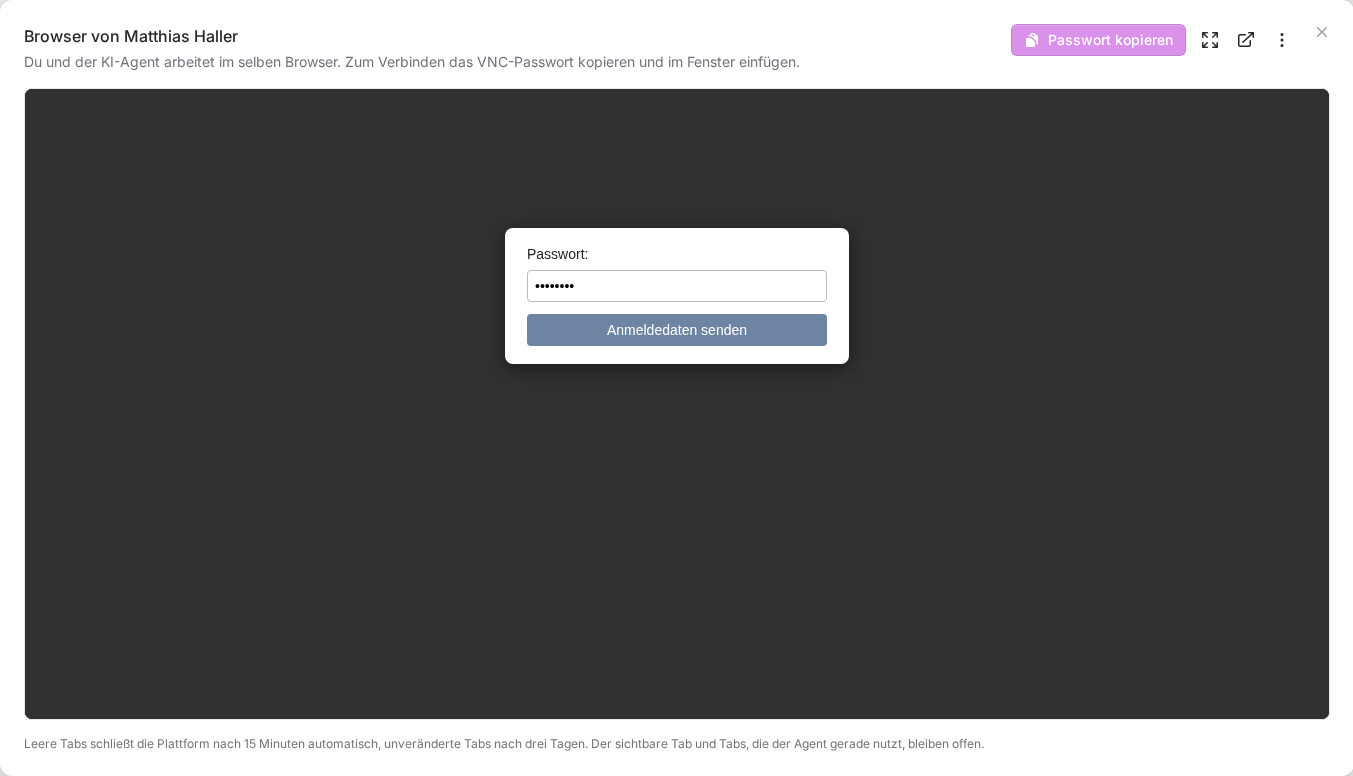
The password is a so-called VNC password. It protects the connection to the browser. You do not need to remember it, you copy it again each time you connect.
The browser on a page of its own
If you work in the browser for a while, open it on a page of its own. There it fills the whole browser window instead of just part of the screen. There are two ways to get there:
- In the Browser of … window, click Open in new tab (the icon with the arrow pointing out of a box).
- On the agent's page (click its name in the agent list), click Browser under Channels and actions. The page then opens straight away in a new tab.
The page of its own has the same buttons as the window: Copy password, Fullscreen and More actions. To finish, simply close the tab. The window in the agent list and the page of its own can be open at the same time.
On the iPhone there is no fullscreen for single page elements, so the Fullscreen button is missing. Use the page of its own there.
The buttons in the window
- Fullscreen: shows the browser across the whole screen.
- Open in new tab: opens the browser on its own page, see above.
- More actions: contains Generate new password and Close all tabs.
You need Generate new password if the password may have fallen into the wrong hands. Running sessions stay connected, new connections need the new password. It can take a few minutes until the browser accepts it, and the window shows a notice in the meantime. Then get it again with Copy password. Without you doing anything, the password is renewed once a month, but only when nobody is connected.
Close all tabs tidies up when a lot of tabs have piled up. Only the visible tab and the tabs the agent is currently using stay open.
Tabs that close by themselves
To keep the browser lean, the platform tidies up regularly: empty tabs are closed after 15 minutes, and so are tabs that have not changed for three days. The visible tab and tabs the agent is currently using always stay open.
If a page should always be at hand, such as the mailbox, ask the agent to open it again itself when needed. Logins usually stay saved in the browser even after the tab was closed.
Who can open the browser
Only the person the agent belongs to in the org chart can open the browser, and only if that person may manage FlowAgents (owner, co-owner or full access). If no linked person stands above an agent, it belongs to the team owner. For agents of other team members the globe is missing, even for the owner. How this assignment works is explained in Who owns an AI agent?
A browser exists only if we have set one up for the agent and the agent is active. If the globe is missing for one of your own agents, get in touch with us.
If something goes wrong
- “The browser is being set up. This can take a few minutes.” Wait a few minutes. The window updates by itself.
- “The last browser setup failed”: Get in touch with us, we can see the error too.
- “The new password is not active in the browser yet.” The platform tries again automatically within a day. If you cannot connect until then, get in touch with us.
- The password is not accepted: If it was just regenerated, the old one may still apply. Wait a few minutes and copy it again.
- “The browser was closed because its access expired.” For agents with a specially protected browser connection, the platform keeps checking whether you may still open the browser and closes a view after four hours at the latest. Simply open the browser again with the globe.
- The page of its own says “This browser is closed”: Click To the AI agents and open the browser again there.
- “Only the person this agent is assigned to can open this browser.” The agent belongs to another team member.
- “Too many requests.” You copied, regenerated or closed tabs very often in a short time. Try again later.