
You can talk to your AI agent the way you would talk to a colleague on the phone, right in your browser. You don't need a phone or a phone number, just a microphone. For tasks, data and tools the agent asks its system in the background and comes back with the result.
Starting a call
- In the sidebar under FlowAgents, open AI agents.
- Click the phone icon (Call) in the agent's row.
- In the Call with … window, click Start call.
- Allow your browser to use the microphone when it asks.
If you have write access to the org chart, you will also find the phone icon in the agent's detail window in the Org chart, and a Call button on the agent's own page, which opens when you click its name in the list (see The agent detail page).
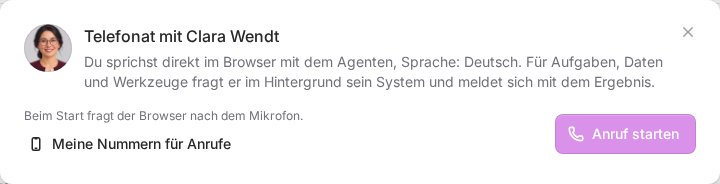
The top of the window shows what is happening: Requesting microphone …, Connecting … and then Listening or Speaking. The call duration runs next to it. During the call the window writes down what is said.
During the call
- Just start talking, there is no button to press.
- Use the microphone icon to mute and unmute yourself.
- When the agent asks its background system, the window shows "The agent is asking its background system …". It speaks up as soon as it has the answer.
- Click Hang up to end the call.
If an answer only arrives after you hang up, it is added to the call's transcript. If you have connected FlowAI to Telegram, you also get it in Telegram as "Follow-up from your call with …", see Connect FlowAI to Telegram.
Call history and transcripts
After the call the window says "The call has ended. The transcript is in the call history." Clicking Open call history takes you to Calls with …. Later you can also reach the list with the Calls button on the agent's page. There you see when each call started, its channel, the caller, the duration and the status. Click the speech bubble icon to expand the transcript.
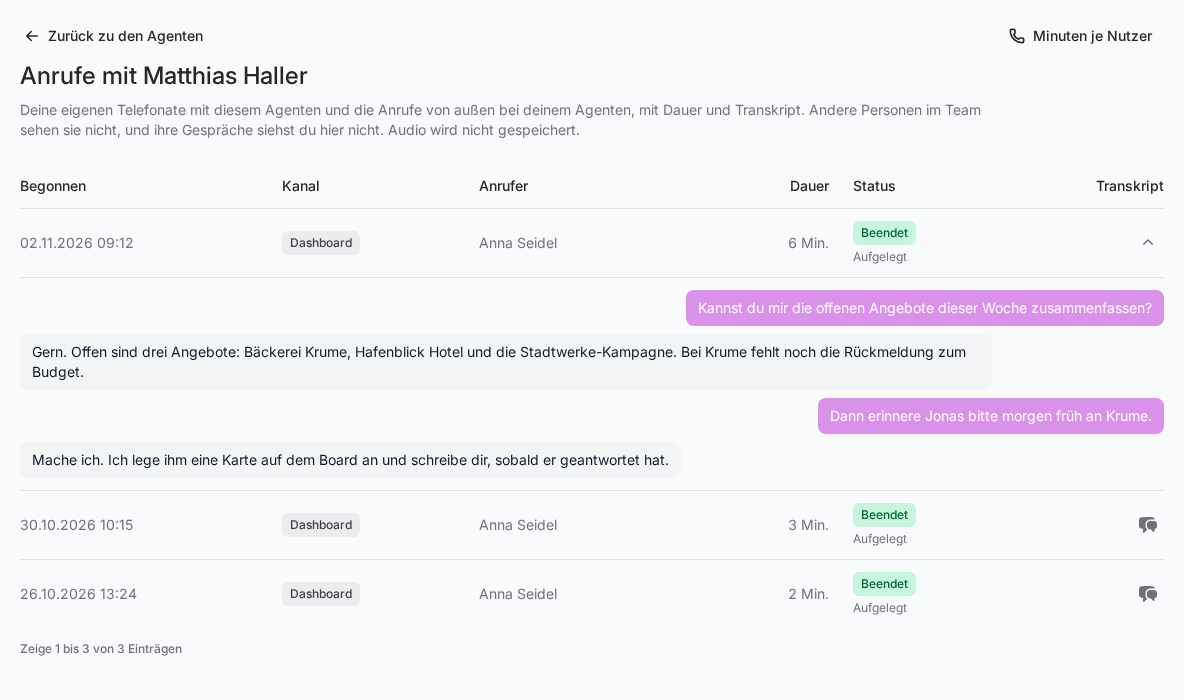
The list shows your own calls with this agent and outside calls to its phone number if the agent belongs to you. You don't see calls of other people in the team. Audio is not stored, only the text. More on this in Reading the call history.
Setting the language and voice
- In the AI agents list, click the three dots (Manage) next to the agent and choose Phone settings.
- Choose the Call language: German, English or Portuguese (Brazil).
- Choose a Voice. The play button lets you hear a short sample in the selected call language first.
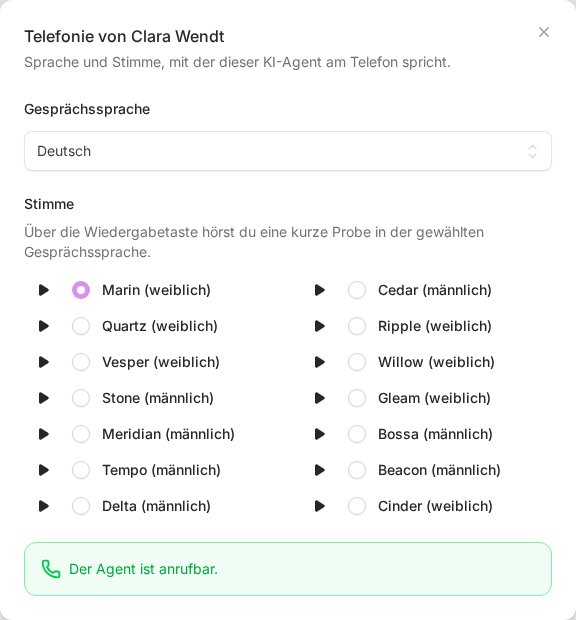
Your change is saved right away. Below it you see whether the agent can be called, or the reason why it can't right now. Call language and voice apply to calls in the browser and to calls over the agent's phone number.
Who can call whom
You see the phone icon for your own agents, meaning the ones below you in the org chart, and for agents that no team member is assigned to yet. You don't call agents that belong to another team member, not even as the owner. The phone settings are changed by the owner and the co-owners. Every answered call counts toward your team's minute pool, see Understanding your plan and minute pool. How your agent can also be reached under its own phone number is explained in Booking a phone number for an AI agent.
If something goes wrong
- "Microphone access was denied." Allow the microphone for this site in your browser settings and start the call again.
- "The audio connection could not be established." Common causes are a VPN, a firewall or a browser extension that blocks voice connections. A call that was set up counts at least one started minute, even without an audio connection.
- "Too many calls are running on this server right now." Try again in a minute.
- "Too many call attempts." Wait a while and then try again.
- The phone icon is greyed out: Hover over it and the tooltip tells you why. For example, the agent is not fully set up yet, is being set up for calls, or has not reported for more than ten minutes. In that last case it often helps to look at the status light.