
Your AI agents think with an AI subscription you bring yourself: ChatGPT or Grok. You log the agent in once with your account, and from then on usage runs through that subscription. No password sharing is needed, just a short code on the provider's sign-in page.
Before you start
- You're the owner or a co-owner of the team, or you have full access to FlowAgents. Only then do you see the three-dot menu in the agent list.
- The AI agent is set up and active. Logging in isn't possible yet for a planned agent.
- For ChatGPT you need a ChatGPT account with a subscription. For Grok, xAI only allows the login with SuperGrok or Premium+.
Opening the AI subscription section
- In the sidebar under FlowAgents, open AI agents.
- In the agent's row, click the three dots on the right (Manage).
- Choose AI subscription.
Alternatively, open the agent's detail page and click Settings there, see Configure an AI agent: detail page and profile.
The AI subscription column in the list already shows which subscription an agent uses. Not set means none is logged in yet.
Logging in an account
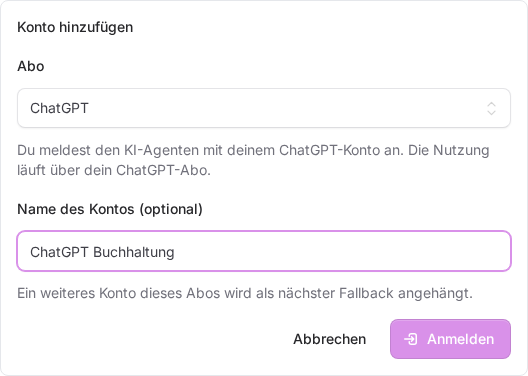
- In the AI subscription of … window, click Add account.
- Under Subscription, choose either ChatGPT or Grok.
- If you like, give the account a name under Account name (optional), such as "ChatGPT Accounting". This helps once you use several accounts.
- Click Log in. For a moment you'll see "Preparing the ChatGPT login …".
The window then shows a Code and the Open sign-in page button.
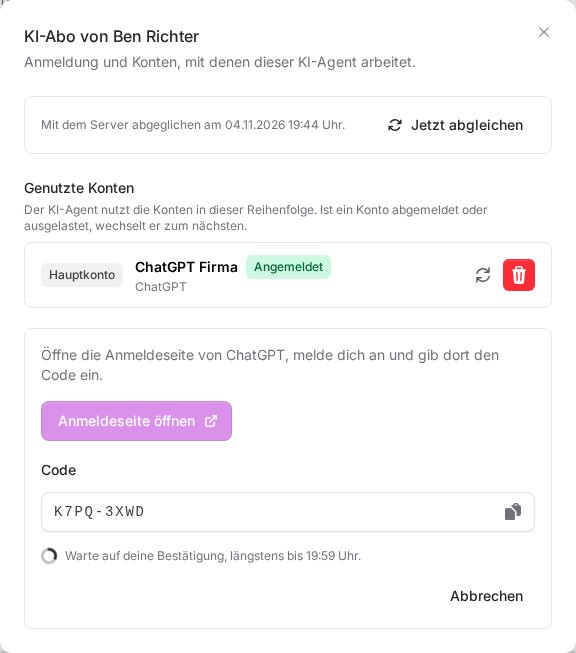
- Click Open sign-in page. The provider's page opens in a new tab.
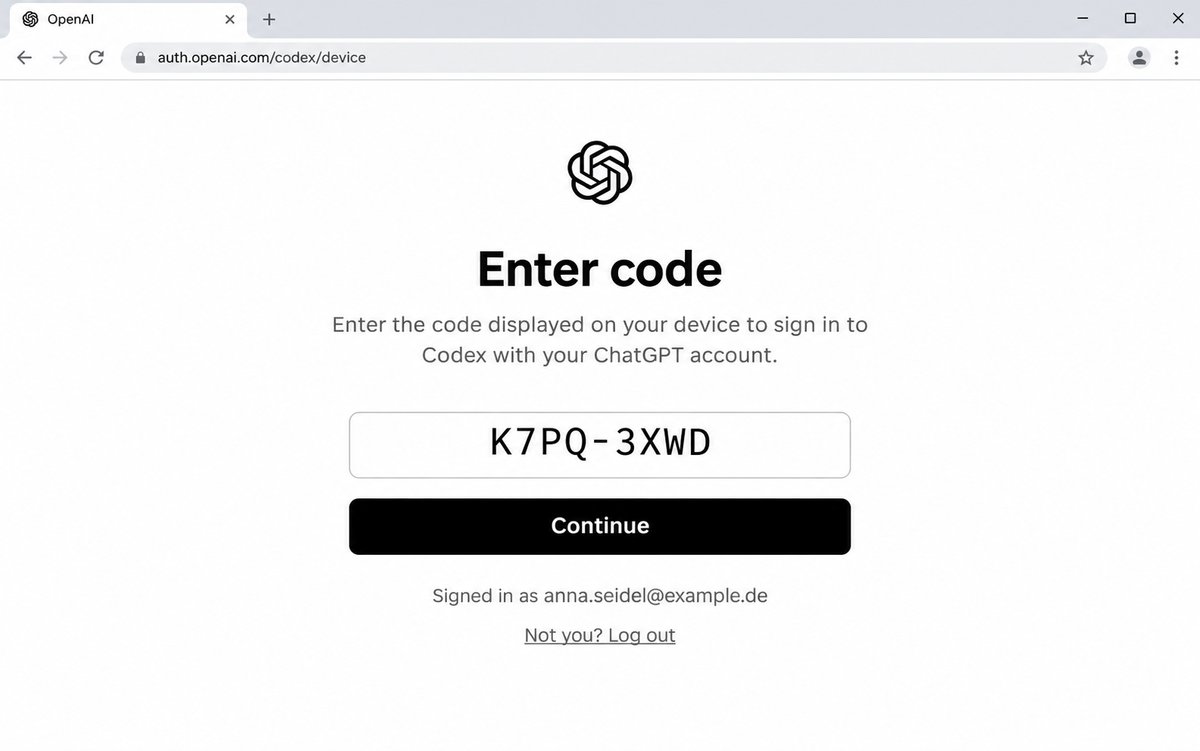
- Sign in there with your account.
- Enter the code shown in the window and confirm. The icon next to the code copies it.
- Switch back to FlowAgents. As soon as you've confirmed, it says "The AI agent is logged in to ChatGPT." and the account appears under Accounts in use as Logged in.
The window waits for your confirmation until the time shown. Click Cancel to abort the login.
Logging an account in again
Logins expire at some point. The agent list then shows Logged out for the agent along with a Log in again button that takes you straight to the AI subscription window. There, a logged-out account has the state Logged out and a Log in button next to it. To log in an account that's still logged in, use the circular arrows (Log in again). The steps are the same as above: get a code, enter it on the sign-in page, done.
If something goes wrong
- "The login expired. Please start it again." The code was open for too long. Click Log in again.
- "The login was not approved. Please start it again." The code wasn't confirmed on the sign-in page. Start the login again.
- "xAI does not allow this account to log in." Your Grok account doesn't have SuperGrok or Premium+.
- "Too many login attempts. Please wait an hour." After several attempts in a row, a break is needed.
- "A login for this AI agent is already running." Finish or cancel the open login first.
- "The AI agent is not active yet." The agent is still being set up. Try again afterwards.
- "No server is assigned to the AI agent yet." The setup isn't finished yet. Get in touch if it stays that way for a while.
Good to know
- You can give an agent several accounts, such as a second ChatGPT account or Grok as well. It then switches automatically when an account is exhausted. How that works is explained in Multiple accounts, main account and API as fallback.
- Sync now fetches the current state of the accounts from the agent's server.