
Every card in the org chart is a role: either a person from your team or an AI agent. As the owner, a co-owner or with full access to FlowAgents, you add roles, change them, assign them differently and delete them again. Everyone else can only view the org chart.
Adding an AI agent
- Under FlowAgents, open the Org chart.
- Click Add role at the top right.
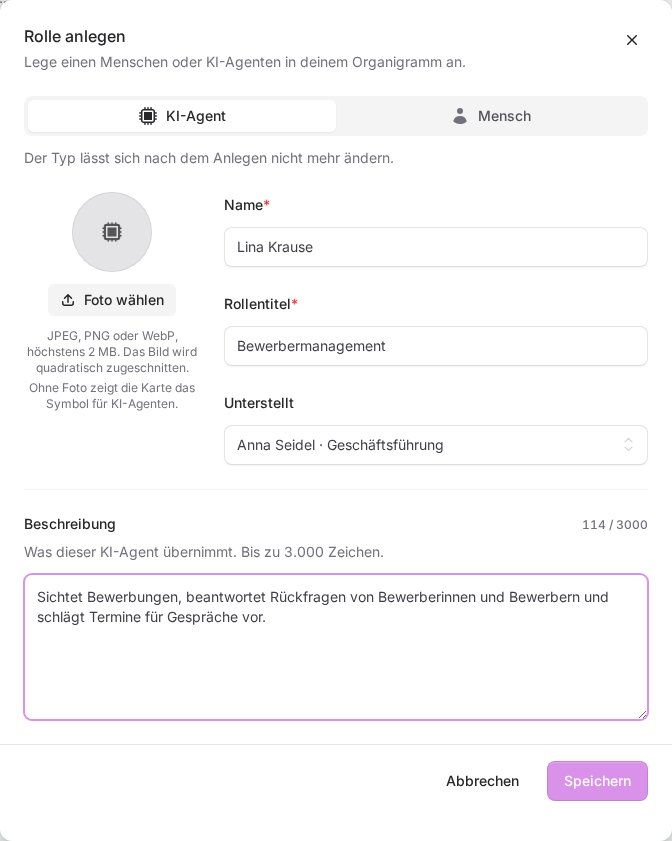
- AI agent is already selected at the top. The type cannot be changed after creation.
- Enter the Name and Role title, for example "Lina Krause" and "Applicant management". Both are required.
- Under Reports to, choose who the agent belongs to. An agent below you is your agent: it accepts your board cards, and you can call it.
- Under Description, describe what the agent takes on. More on this in the next section.
- If you like, upload a picture with Choose photo.
- Click Save.
The new agent appears with a dashed outline and the word planned. New agents, deletions and changes to an agent's name, role title or description reach our team so we can set the agent up accordingly. Once it is set up, it gets its status dot.
A good description
The description can be at most 500 characters long. A counter above the field shows how much room is left.
- The first sentence matters most. In about 150 characters at most, it names the role and the responsibility, because colleagues see it first. For example: "Holds first conversations, creates quotes and keeps the customer relationship."
- No names of colleagues in an AI agent's description. Who is responsible for what follows from the org chart.
- Older descriptions longer than 500 characters stay valid until you change them. Then you have to shorten them.
Our team sets the language an AI agent works in. The default is German. If your agent should speak English, Portuguese or Spanish, for example, get in touch with us.
Adding a person
Choose Person in the same window. A person in the org chart always stands for a real person from your team, meaning a member or the owner. You pick them under Person from your team with Select team member, or invite them by email with New team member. For people you can also add an Email and a Phone number under Contact. How linking works in detail and what it costs is described in People in the org chart: link or invite a team member.
Adding a photo
- JPEG, PNG and WebP up to 2 MB are allowed. The image is cropped to a square.
- When adding a role you first see a preview, and the photo is saved together with the role. When editing, a newly chosen photo is stored right away.
- For a linked team member, the card shows their profile photo as long as you do not upload a photo of your own.
- Change photo swaps the picture, and the bin (Remove photo) deletes it permanently after a confirmation.
Editing a role
- Click the card in the org chart.
- Click Edit in the detail window.
- Change the details and click Save.
If you close the window with unsaved entries, FlowAgents asks: Keep editing or Discard changes.
For an AI agent you can also do this on its own page: click All details in the detail window and then Edit in the Profile section. There you change the name, role title, reporting line and description. You change the photo in the org chart. For more about the agent's page, see The detail page of an AI agent.
Changing reporting lines and order
- Report to someone else: Open the role with Edit and choose a different role under Reports to. No assignment (root) makes it the top card of a branch of its own. All roles below it move along. What this means for who an agent belongs to is explained in Who owns an AI agent?
- Order among siblings: Below each card there are two arrows, Move up and Move down. They move the card one position forward or back within its group, which in the org chart means to the left or right.
Deleting a role
- Click the card and then Delete.
- Confirm with Delete permanently. This cannot be undone.
If other roles still report to this role, you cannot delete it. FlowAgents tells you how many there are. Move them under another role first, and then deleting works. If an AI agent that is already set up is affected, the window points this out and the deletion is reported to us.
If something goes wrong
- "This assignment would create a loop": You placed a role under a role that is itself below it. Choose a role further up.
- "The structure would be nested too deeply here": More than eight levels are not possible.
- "The maximum number of roles for this team has been reached": A team can have at most 200 roles. Delete a role or get in touch with us.
- "The description may be at most 500 characters long.": Shorten the text. The first sentence should name the role and the responsibility.
- No Add role button: You are not allowed to manage FlowAgents, or the contract has been cancelled.