
People in the org chart are more than name tags. Every card of the type Person stands for a real person from your team, meaning a member or the owner. Through this link FlowAgents knows which AI agents belong to whom, whose board they serve and who may call them.
Linking an existing team member
- Under FlowAgents, open the Org chart and click Add role (or open an existing card and click Edit).
- Choose Person at the top and Select team member below it.
- Under Person from your team, choose the person. The owner appears in the list with "(owner)" after the name.
- Name, email and profile photo are copied over. You can still change them afterwards.
- Enter the Role title, choose the parent role under Reports to and click Save.
If the person does not have access to FlowAgents yet, they get it when you save, provided you may invite team members. Each person appears only once in the org chart. If they are already on another role, FlowAgents tells you which one.
Inviting a new person
If someone is not on your team yet, invite them straight from the org chart.
- Choose Person and then New team member.
- Enter the Email address.
- Add the Name, Role title and Reports to and click Save.
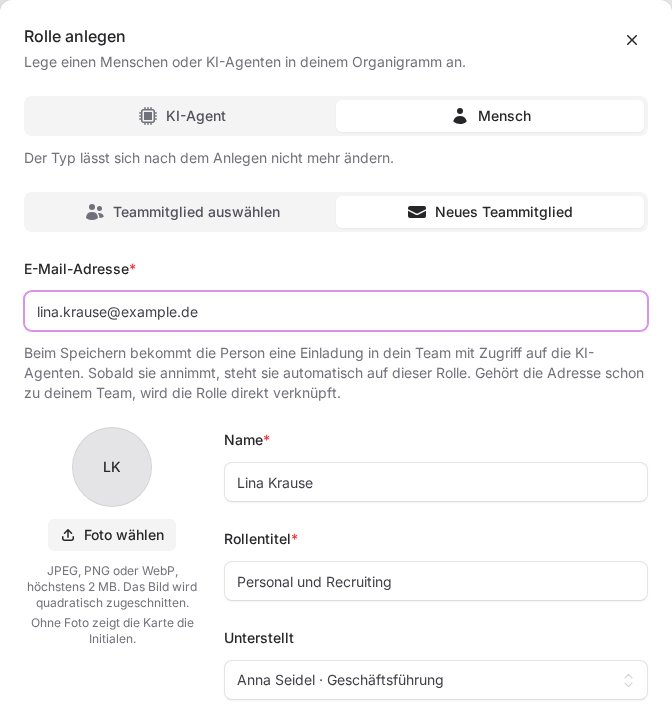
When you save, the person receives an invitation to your team that already includes access to the AI agents. Until they accept, their card shows Invitation pending. As soon as they accept, they are placed on this role automatically. If the address already belongs to your team, the role is linked to that person right away and no invitation is sent.
Anyone who may manage the team or the AI agents can invite people. Anyone who may not sees a note below the selection.
What linking costs
In the package with Managed, every member with access to the AI agents is billed monthly, pro rata to the day, and for an invitation from the day it is sent. If an amount applies to the person, the window shows it at the bottom left before you save. This applies to an invitation just as it does to a team member who only gets access when you save. What your team pays in total is shown under Plan, see Understanding your plan and minute pool.
What happens after saving
- Invitation sent: The card is in the org chart and the email is on its way.
- Linked to team member: The address already belonged to your team, and the role is linked to that person right away.
- Access granted: A linked member now has access to the AI agents.
- No access yet: The role is saved, but access is only granted by a team manager on the Team page.
- Invitation e-mail not delivered: The invitation was created, but the email did not arrive. Save the card again later and it will be sent once more.
Expired invitations
If the person did not accept the invitation in time, the card shows Invitation expired. Open the card, click Edit and then Save. This sends the invitation again. You can also see and manage pending invitations in team management, see Invitations and invitation links.
Good to know
- The link decides who an AI agent belongs to: all agents below a person are that person's agents, until the next person comes along in the branch. More on this in Who owns an AI agent?
- Only the person above an agent may message it in Telegram. You enter their Telegram ID when connecting, see Connect your AI agent to Telegram.
- Adding a person more than once, for example for two roles, is not possible. Combine the duties in the role title instead.