
For an AI agent to recognise you on the phone, you add the numbers you call from, for example your mobile and your office line. When you call an agent number you booked yourself from one of these numbers, you have the same access on the phone as in the dashboard. The agent treats every other caller as an outside caller and only takes down their request.
Where you keep your numbers
There are three ways to the same list:
- In the sidebar under FlowAgents, Telephony: the owner and co-owners open the Team members tab and click Add or Edit in their own row. Members find their numbers in the My phone numbers tab.
- If your own number is still missing, the Phone numbers tab shows the note Your own phone number is still missing at the top, with an Add phone number button.
- In an agent's call window, My numbers for calls takes you straight to the list.
The small number on the tab shows how many people don't have an own phone number yet. As a member you see a 1 there as long as your own number is missing.
Adding a phone number
- Open your Own phone numbers list using one of the ways above.
- Under Add number, choose the Country (Germany, USA or Brazil).
- Enter the Phone number. You can write it the way you are used to, for example with the area code and spaces.
- Optionally give it a Label, such as mobile or office.
- Click Save.
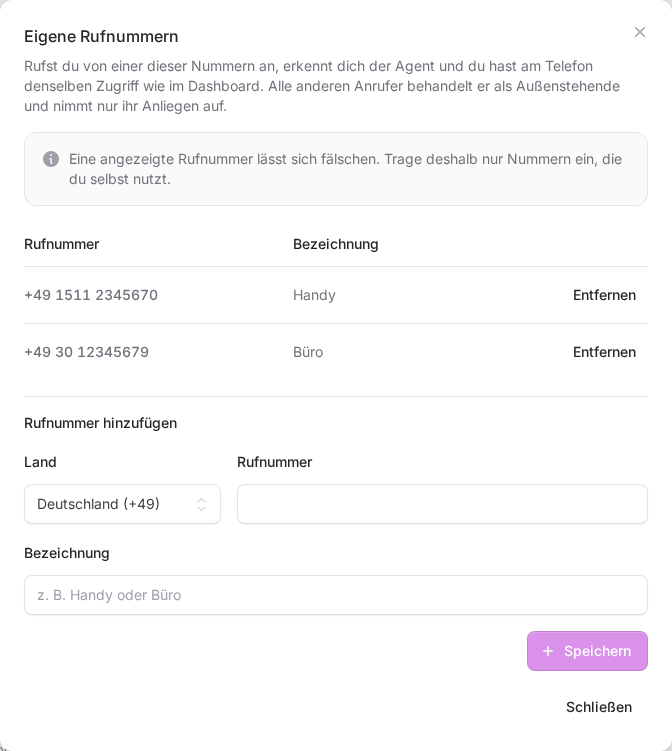
You can add up to ten numbers. If a number is invalid or already in the list, the form tells you right at the field. There is no confirmation code by text message: the number counts as soon as it is saved.
Removing a phone number
Click Remove in the number's row and confirm with Remove. Calls from this number then count as calls from outside callers.
Keeping numbers for the whole team
As the owner or a co-owner, the Team members tab shows everyone with access to the AI agents, with the owner and co-owners marked Owner and Co-owner. People without a number are listed at the top and marked Missing. If numbers are missing in the team, the Phone numbers tab points this out too, with a Go to team members button.
- Click Add in the person's row (or Edit if they already have numbers).
- The Own phone numbers of list opens with the person's name. Here you add or remove numbers, just like your own.
- Close the dialog with Close.
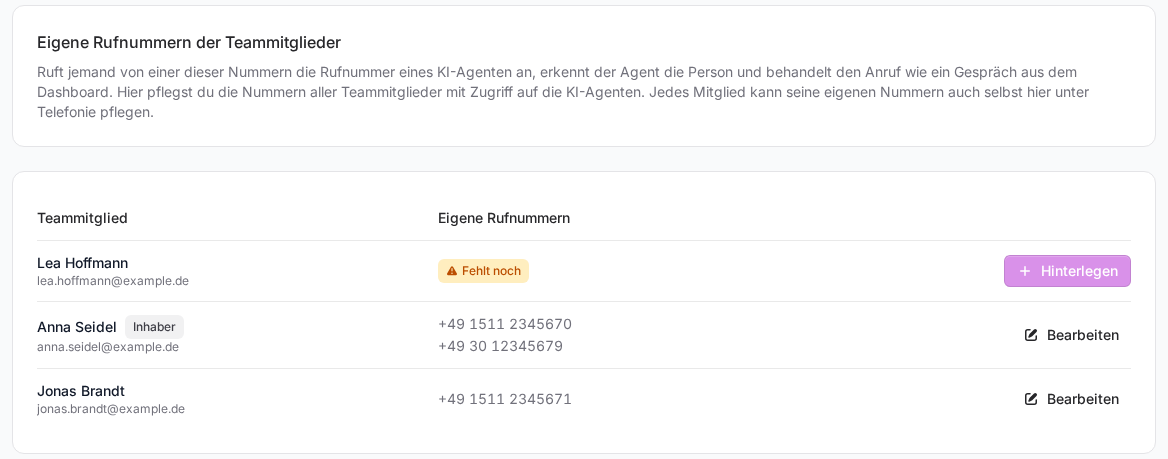
This way you can also set up colleagues who never open Telephony themselves. Members without owner rights only see and edit their own numbers.
When an agent recognises you
An agent checks the caller's number against the own phone numbers of the person who booked its phone number. If that person no longer has access to the AI agents, or if we booked the number for you, the owner's numbers count. If another team member calls, the agent treats the call like one from an outside caller, even if that member's number is stored. The easiest setup is therefore for every member to book the phone number for their own agent themselves. How that works is explained in Booking a phone number for an AI agent.
Good to know
- A displayed phone number can be faked. So only add numbers you use yourself, and no shared numbers that other people call from too.
- If you call with a withheld number, the agent can't recognise you.
- Calls from your stored numbers don't trigger a caller message e-mail and appear in the call history with the Owner label.
- In the browser you can call without any stored number, see Calling your AI agents in the browser.